Automatically Sync SSL Certificates from Nginx Proxy Manager to Mailcow
Claus Munch
Sep 14, 2026 · 16 min read
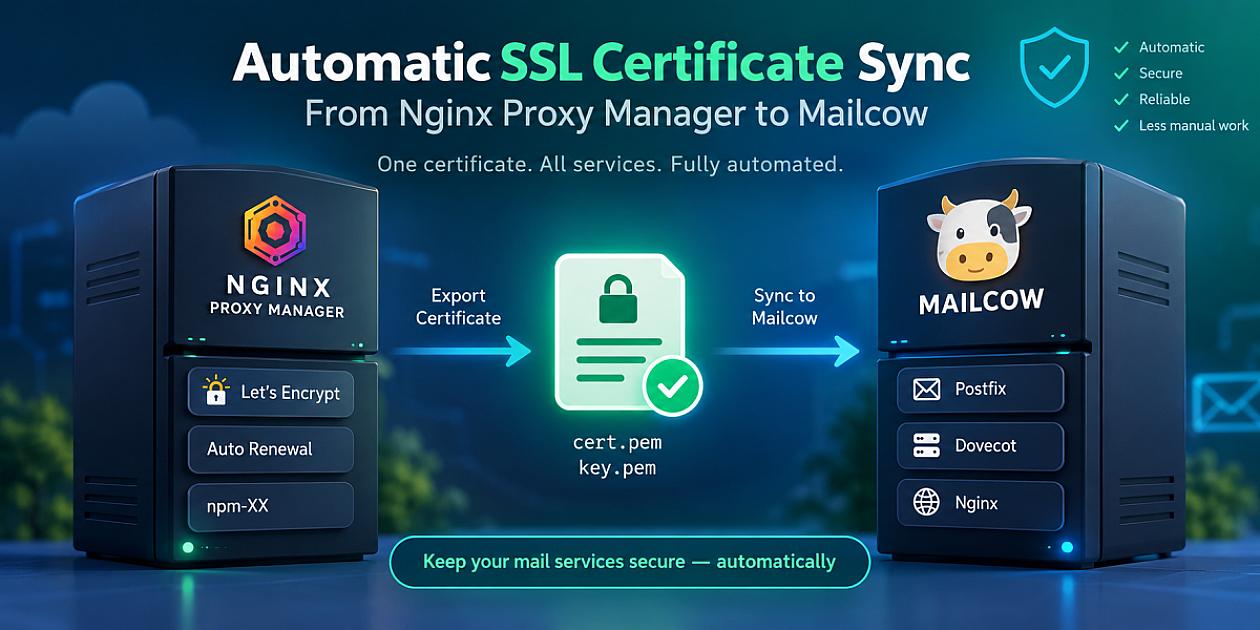
Automatically Sync SSL Certificates from Nginx Proxy Manager to Mailcow
When Nginx Proxy Manager (NPM) is used as the public reverse proxy in front of Mailcow, it often makes sense to let NPM handle Let's Encrypt certificate issuance and renewal.
There is one complication: Mailcow still needs the certificate itself for services that don't pass through the HTTP reverse proxy, such as SMTP and IMAP.
This guide sets up an automated process where:
- Nginx Proxy Manager obtains and renews the Let's Encrypt certificate.
- An export script detects when the NPM certificate changes.
- The certificate and private key are copied to a location accessible by the Mailcow server.
- A second script detects the new certificate and installs it into Mailcow.
- Postfix, Dovecot, and Mailcow's Nginx container are restarted.
- An email notification is sent when a certificate is actually changed.
The scripts use SHA-256 fingerprints, so the normal daily checks don't restart Mailcow unnecessarily.
Architecture
The setup consists of two servers.
                  SERVER 1
          Nginx Proxy Manager
                  │
                  │
           Let's Encrypt
                  │
                  ▼
     /etc/letsencrypt/live/npm-XX/
          ├── fullchain.pem
          └── privkey.pem
                  │
                  │ export-certs.sh
                  ▼
             Shared storage
          ├── cert.pem
          └── key.pem
                  │
                  │
                  ▼
                  SERVER 2
               Mailcow
                  │
                  │ import-certs.sh
                  ▼
       data/assets/ssl/cert.pem
       data/assets/ssl/key.pem
                  │
                  ├── Postfix
                  ├── Dovecot
                  └── Nginx
The shared storage could be implemented using NFS, SMB/CIFS, SSHFS, rsync, a bind mount, or another mechanism appropriate for the environment.
In the examples below:
NPM server:
/backup
Mailcow server:
/media/letsencrypt
Both locations refer to the same shared storage.
Part 1 — Nginx Proxy Manager Server
Everything in this section is performed on the server/container running Nginx Proxy Manager.
Find the Correct NPM Certificate
Nginx Proxy Manager stores Let's Encrypt certificates using directories such as:
/etc/letsencrypt/live/npm-1
/etc/letsencrypt/live/npm-2
/etc/letsencrypt/live/npm-3
...
The number does not necessarily correspond to anything obvious from the hostname, so don't simply guess the directory.
First list the available certificates:
ls -lah /etc/letsencrypt/live/
You may see:
npm-1
npm-2
npm-3
npm-7
npm-16
Each directory normally contains symlinks such as:
cert.pem
chain.pem
fullchain.pem
privkey.pem
To find which certificate belongs to your Mailcow hostname, inspect all certificates:
for cert in /etc/letsencrypt/live/npm-*/fullchain.pem; do
    echo "=== $cert ==="
    openssl x509 -in "$cert" -noout -subject -dates
    echo
done
For example:
=== /etc/letsencrypt/live/npm-12/fullchain.pem ===
subject=CN = example.org
notBefore=...
notAfter=...

=== /etc/letsencrypt/live/npm-16/fullchain.pem ===
subject=CN = mail.example.org
notBefore=...
notAfter=...
In this example, the certificate required by Mailcow is:
/etc/letsencrypt/live/npm-16/
You can inspect it in more detail:
openssl x509 \
    -in /etc/letsencrypt/live/npm-16/fullchain.pem \
    -noout \
    -subject \
    -issuer \
    -dates \
    -ext subjectAltName
Make sure the Mailcow hostname appears either as the certificate CN or in the Subject Alternative Names.
For example:
DNS:mail.example.org
Understand the Let's Encrypt Symlinks
The files under:
/etc/letsencrypt/live/npm-16/
are normally symlinks.
Check with:
ls -lah /etc/letsencrypt/live/npm-16/
You may see something similar to:
cert.pem -> ../../archive/npm-16/cert1.pem
chain.pem -> ../../archive/npm-16/chain1.pem
fullchain.pem -> ../../archive/npm-16/fullchain1.pem
privkey.pem -> ../../archive/npm-16/privkey1.pem
This is important when exporting the files.
We want to copy the actual files, not recreate the Let's Encrypt symlinks on the destination.
For that reason the export script uses:
cp -L
The -L option dereferences the symlink and copies the file it points to.
Create the NPM Export Script
Create:
nano /backup/export-certs.sh
Use the following script.
#!/bin/bash
set -e

# ------------------------------------------------------------
# CONFIGURATION
# ------------------------------------------------------------

# NPM Let's Encrypt certificate directory.
SOURCE_DIR="/etc/letsencrypt/live/npm-XX"

# Destination accessible by the Mailcow server.
BACKUP_DIR="/backup"

# Certificate hostname.
CERT_NAME="mail.example.org"

# Notification recipient.
NOTIFY_EMAIL="admin@example.org"

# ------------------------------------------------------------

FORCE=false

if [ "${1:-}" = "--force" ] || [ "${1:-}" = "-f" ]; then
    FORCE=true
fi

SRC_CERT="$SOURCE_DIR/fullchain.pem"
SRC_KEY="$SOURCE_DIR/privkey.pem"

DST_CERT="$BACKUP_DIR/cert.pem"
DST_KEY="$BACKUP_DIR/key.pem"

cert_fingerprint() {
    openssl x509 \
        -in "$1" \
        -noout \
        -fingerprint \
        -sha256 \
        | cut -d= -f2
}

# ------------------------------------------------------------
# Validate source files
# ------------------------------------------------------------

if [ ! -f "$SRC_CERT" ] || [ ! -f "$SRC_KEY" ]; then
    echo "Error: Missing source certificate or key in $SOURCE_DIR" >&2
    exit 1
fi

if ! openssl x509 -in "$SRC_CERT" -noout >/dev/null 2>&1; then
    echo "Error: Source certificate is invalid." >&2
    exit 1
fi

# ------------------------------------------------------------
# Verify certificate/private-key pair
#
# This method works with RSA and EC/ECDSA keys.
# ------------------------------------------------------------

CERT_PUBLIC_KEY=$(
    openssl x509 \
        -in "$SRC_CERT" \
        -pubkey \
        -noout 2>/dev/null \
    | openssl pkey \
        -pubin \
        -outform DER 2>/dev/null \
    | openssl sha256
)

PRIVATE_PUBLIC_KEY=$(
    openssl pkey \
        -in "$SRC_KEY" \
        -pubout \
        -outform DER 2>/dev/null \
    | openssl sha256
)

if [ -z "$CERT_PUBLIC_KEY" ] || [ -z "$PRIVATE_PUBLIC_KEY" ]; then
    echo "Error: Could not extract public keys for validation." >&2
    exit 1
fi

if [ "$CERT_PUBLIC_KEY" != "$PRIVATE_PUBLIC_KEY" ]; then
    echo "Error: Certificate and private key do not match." >&2
    exit 1
fi

# ------------------------------------------------------------
# Prepare destination
# ------------------------------------------------------------

mkdir -p "$BACKUP_DIR"

# ------------------------------------------------------------
# Compare fingerprints
# ------------------------------------------------------------

SRC_FP=$(cert_fingerprint "$SRC_CERT")
DST_FP=""

if [ -f "$DST_CERT" ]; then
    if openssl x509 -in "$DST_CERT" -noout >/dev/null 2>&1; then
        DST_FP=$(cert_fingerprint "$DST_CERT")
    fi
fi

# Normal scheduled executions should be completely silent
# when nothing has changed.
if [ "$FORCE" = false ] && [ "$SRC_FP" = "$DST_FP" ]; then
    exit 0
fi

# ------------------------------------------------------------
# A certificate needs exporting
# ------------------------------------------------------------

echo "Source certificate:"

openssl x509 \
    -in "$SRC_CERT" \
    -noout \
    -subject \
    -issuer \
    -dates

if [ "$FORCE" = true ]; then
    echo "Force mode enabled."
else
    echo "New certificate detected."
fi

echo "Exporting certificate to $BACKUP_DIR..."

# Let's Encrypt live files are symlinks.
# -L copies the actual target files.

cp -L "$SRC_CERT" "$DST_CERT"
cp -L "$SRC_KEY" "$DST_KEY"

chmod 644 "$DST_CERT"
chmod 600 "$DST_KEY"

# ------------------------------------------------------------
# Validate exported certificate
# ------------------------------------------------------------

if ! openssl x509 -in "$DST_CERT" -noout >/dev/null 2>&1; then
    echo "Error: Exported certificate failed validation." >&2
    exit 1
fi

echo "Certificate exported successfully."

# ------------------------------------------------------------
# Notification
# ------------------------------------------------------------

CERT_INFO=$(
    openssl x509 \
        -in "$DST_CERT" \
        -noout \
        -subject \
        -issuer \
        -dates \
        -fingerprint \
        -sha256
)

if command -v sendmail >/dev/null 2>&1; then

    sendmail "$NOTIFY_EMAIL" <<EOF
Subject: SSL certificate exported for $CERT_NAME
To: $NOTIFY_EMAIL
From: root@$(hostname)
Content-Type: text/plain; charset=UTF-8

An SSL certificate has been exported.

Certificate: $CERT_NAME
Source: $SOURCE_DIR
Destination: $BACKUP_DIR
Force mode: $FORCE

$CERT_INFO

Server: $(hostname)
Date: $(date --iso-8601=seconds)
EOF

    echo "Notification email sent to $NOTIFY_EMAIL."
else
    echo "Warning: sendmail is not installed; notification was not sent." >&2
fi

echo "Done."
Change:
SOURCE_DIR="/etc/letsencrypt/live/npm-XX"
CERT_NAME="mail.example.org"
NOTIFY_EMAIL="admin@example.org"
to match your environment.
Make the script executable:
chmod +x /backup/export-certs.sh
Test the Export
First force an export:
/bin/bash /backup/export-certs.sh --force
You should see the certificate details and confirmation that the certificate was exported.
Check the destination:
ls -lah /backup/cert.pem /backup/key.pem
Inspect the exported certificate:
openssl x509 \
    -in /backup/cert.pem \
    -noout \
    -subject \
    -issuer \
    -dates
Now run the script again normally:
/bin/bash /backup/export-certs.sh
There should be no output.
That is intentional.
The certificate fingerprints match, so there is nothing to do.
Check the exit code:
/bin/bash /backup/export-certs.sh
echo $?
Expected:
0
Schedule the Export
The script can now be executed daily by cron.
For example:
crontab -e
Add:
0 2 * * * /bin/bash /backup/export-certs.sh >/dev/null
This checks for a new certificate every day at 02:00.
Notice that only standard output is redirected:
>/dev/null
Errors written to stderr are intentionally retained.
This means:
- No certificate change → silent.
- Successful certificate export → notification generated by the script.
- Error → cron can notify the administrator.
Avoid this:
0 2 * * * /bin/bash /backup/export-certs.sh >/dev/null 2>&1
unless errors should also be discarded.
Part 2 — Mailcow Server
Everything from this point is performed on the Mailcow Docker host.
You do not need to enter the Postfix or Dovecot containers to install the certificate.
Mailcow mounts the certificate files from the Docker host into the relevant containers.
Assume Mailcow is installed under:
/opt/stacks/mailcowdockerized
Change this path if your installation is elsewhere.
Configure Mailcow
Edit:
cd /opt/stacks/mailcowdockerized

nano mailcow.conf
For an installation where NPM handles Let's Encrypt, the relevant settings may look like:
MAILCOW_HOSTNAME=mail.example.org
SKIP_LETS_ENCRYPT=y
ENABLE_SSL_SNI=n
The important part for this setup is:
SKIP_LETS_ENCRYPT=y
Mailcow should not independently request another Let's Encrypt certificate if NPM is the certificate authority workflow being used.
Verify the Shared Certificate
On the Mailcow host, assume the shared storage is mounted as:
/media/letsencrypt
Check:
ls -lah /media/letsencrypt/
You should have:
cert.pem
key.pem
Inspect the certificate:
openssl x509 \
    -in /media/letsencrypt/cert.pem \
    -noout \
    -subject \
    -issuer \
    -dates
Mailcow Certificate Locations
Mailcow's primary certificate location is:
data/assets/ssl/
For the example installation:
/opt/stacks/mailcowdockerized/data/assets/ssl/
The resulting files are:
/opt/stacks/mailcowdockerized/data/assets/ssl/cert.pem
/opt/stacks/mailcowdockerized/data/assets/ssl/key.pem
Some configurations may also reference the hostname-specific directory:
/opt/stacks/mailcowdockerized/data/assets/ssl/mail.example.org/
Therefore this setup updates both locations:
data/assets/ssl/cert.pem
data/assets/ssl/key.pem

data/assets/ssl/mail.example.org/cert.pem
data/assets/ssl/mail.example.org/key.pem
Create the Mailcow Import Script
Create:
nano /opt/stacks/mailcowdockerized/import-certs.sh
Use:
#!/bin/bash
set -e

# ------------------------------------------------------------
# CONFIGURATION
# ------------------------------------------------------------

# Location where the certificate exported by NPM is mounted.
BACKUP_SOURCE="/media/letsencrypt"

# Mailcow installation.
MC_PATH="/opt/stacks/mailcowdockerized"

# Mailcow hostname.
MAIL_HOSTNAME="mail.example.org"

# Notification recipient.
NOTIFY_EMAIL="admin@example.org"

# ------------------------------------------------------------

FORCE=false

if [ "${1:-}" = "--force" ] || [ "${1:-}" = "-f" ]; then
    FORCE=true
fi

SRC_CERT="$BACKUP_SOURCE/cert.pem"
SRC_KEY="$BACKUP_SOURCE/key.pem"

SSL_DIR="$MC_PATH/data/assets/ssl"

DST_CERT="$SSL_DIR/cert.pem"
DST_KEY="$SSL_DIR/key.pem"

SNI_DIR="$SSL_DIR/$MAIL_HOSTNAME"
SNI_CERT="$SNI_DIR/cert.pem"
SNI_KEY="$SNI_DIR/key.pem"

cert_fingerprint() {
    openssl x509 \
        -in "$1" \
        -noout \
        -fingerprint \
        -sha256 \
        | cut -d= -f2
}

# ------------------------------------------------------------
# Validate source
# ------------------------------------------------------------

if [ ! -f "$SRC_CERT" ] || [ ! -f "$SRC_KEY" ]; then
    echo "Error: Missing certificate or key in $BACKUP_SOURCE" >&2
    exit 1
fi

if ! openssl x509 -in "$SRC_CERT" -noout >/dev/null 2>&1; then
    echo "Error: Source certificate is invalid." >&2
    exit 1
fi

# ------------------------------------------------------------
# Verify certificate/private-key pair
# ------------------------------------------------------------

CERT_PUBLIC_KEY=$(
    openssl x509 \
        -in "$SRC_CERT" \
        -pubkey \
        -noout 2>/dev/null \
    | openssl pkey \
        -pubin \
        -outform DER 2>/dev/null \
    | openssl sha256
)

PRIVATE_PUBLIC_KEY=$(
    openssl pkey \
        -in "$SRC_KEY" \
        -pubout \
        -outform DER 2>/dev/null \
    | openssl sha256
)

if [ "$CERT_PUBLIC_KEY" != "$PRIVATE_PUBLIC_KEY" ]; then
    echo "Error: Certificate and private key do not match." >&2
    exit 1
fi

# ------------------------------------------------------------
# Destination directories
# ------------------------------------------------------------

mkdir -p "$SSL_DIR"
mkdir -p "$SNI_DIR"

# ------------------------------------------------------------
# Compare fingerprints
# ------------------------------------------------------------

SRC_FP=$(cert_fingerprint "$SRC_CERT")

DST_FP=""
SNI_FP=""

if [ -f "$DST_CERT" ]; then
    DST_FP=$(cert_fingerprint "$DST_CERT")
fi

if [ -f "$SNI_CERT" ]; then
    SNI_FP=$(cert_fingerprint "$SNI_CERT")
fi

if [ "$FORCE" = false ]; then

    if [ "$SRC_FP" = "$DST_FP" ] && \
       [ "$SRC_FP" = "$SNI_FP" ]; then

        # Nothing changed.
        # Remain silent so cron doesn't generate mail.
        exit 0
    fi

fi

# ------------------------------------------------------------
# Install certificate
# ------------------------------------------------------------

echo "Installing certificate for $MAIL_HOSTNAME..."

cp "$SRC_CERT" "$DST_CERT"
cp "$SRC_KEY" "$DST_KEY"

cp "$SRC_CERT" "$SNI_CERT"
cp "$SRC_KEY" "$SNI_KEY"

chmod 644 "$DST_CERT"
chmod 600 "$DST_KEY"

chmod 644 "$SNI_CERT"
chmod 600 "$SNI_KEY"

echo "Installed certificate:"

openssl x509 \
    -in "$DST_CERT" \
    -noout \
    -subject \
    -issuer \
    -dates

# ------------------------------------------------------------
# Restart Mailcow services
# ------------------------------------------------------------

echo "Restarting Mailcow services..."

cd "$MC_PATH"

docker compose restart \
    postfix-mailcow \
    dovecot-mailcow \
    nginx-mailcow

# ------------------------------------------------------------
# Wait for SMTP to return
# ------------------------------------------------------------

echo "Waiting for SMTP..."

for i in {1..12}; do

    if nc -z 127.0.0.1 465 >/dev/null 2>&1; then
        sleep 3
        break
    fi

    sleep 5

done

# ------------------------------------------------------------
# Notification
# ------------------------------------------------------------

CERT_INFO=$(
    openssl x509 \
        -in "$DST_CERT" \
        -noout \
        -subject \
        -issuer \
        -dates \
        -fingerprint \
        -sha256
)

EMAIL_BODY="An SSL certificate has been installed on Mailcow.

Hostname: $MAIL_HOSTNAME
Force mode: $FORCE

$CERT_INFO

Mailcow services were restarted successfully.

Server: $(hostname)
Date: $(date --iso-8601=seconds)
"

if command -v msmtp >/dev/null 2>&1; then

    printf \
        "Subject: Mailcow SSL certificate updated for %s\nTo: %s\n\n%s\n" \
        "$MAIL_HOSTNAME" \
        "$NOTIFY_EMAIL" \
        "$EMAIL_BODY" \
    | msmtp "$NOTIFY_EMAIL"

fi

echo "Done."
Make it executable:
chmod +x /opt/stacks/mailcowdockerized/import-certs.sh
Test the Mailcow Import
Force an initial installation:
cd /opt/stacks/mailcowdockerized

./import-certs.sh --force
The script should:
- Validate the certificate.
- Validate that the private key matches.
- Install the certificate.
- Restart Postfix.
- Restart Dovecot.
- Restart Nginx.
- Send the notification.
Run it again without force:
./import-certs.sh
If nothing changed, there should be no output and no restart.
Schedule the Mailcow Import
Run the import shortly after the NPM export.
For example, if NPM exports at 02:00:
0 2 * * * /bin/bash /backup/export-certs.sh >/dev/null
run the Mailcow import at 02:05:
5 2 * * * /bin/bash /opt/stacks/mailcowdockerized/import-certs.sh >/dev/null
The workflow is therefore:
02:00    NPM checks certificate
   │
   ├── unchanged → nothing happens
   │
   └── changed → certificate exported
                       │
                       ▼
02:05    Mailcow checks exported certificate
   │
   ├── unchanged → nothing happens
   │
   └── changed → install
                       │
                       ├── restart Postfix
                       ├── restart Dovecot
                       ├── restart Nginx
                       └── notification
Verify the Certificate Inside Mailcow
You normally do not need to enter a Mailcow container.
The files can be inspected directly on the Docker host:
openssl x509 \
    -in /opt/stacks/mailcowdockerized/data/assets/ssl/cert.pem \
    -noout \
    -subject \
    -issuer \
    -dates
For troubleshooting, however, it can be useful to see what the containers see.
From the Mailcow directory:
cd /opt/stacks/mailcowdockerized
Check Dovecot:
docker compose exec dovecot-mailcow \
    openssl x509 \
    -in /etc/ssl/mail/cert.pem \
    -noout \
    -subject \
    -issuer \
    -dates
Check Postfix:
docker compose exec postfix-mailcow \
    openssl x509 \
    -in /etc/ssl/mail/cert.pem \
    -noout \
    -subject \
    -issuer \
    -dates
Verify the Public Services
Checking the files isn't enough.
The important test is which certificate the actual network services are presenting.
HTTPS — Port 443
echo | openssl s_client \
    -connect mail.example.org:443 \
    -servername mail.example.org \
    2>/dev/null \
| openssl x509 \
    -noout \
    -subject \
    -issuer \
    -dates
SMTPS — Port 465
echo | openssl s_client \
    -connect mail.example.org:465 \
    -servername mail.example.org \
    2>/dev/null \
| openssl x509 \
    -noout \
    -subject \
    -issuer \
    -dates
SMTP Submission — Port 587
Port 587 uses STARTTLS:
echo | openssl s_client \
    -starttls smtp \
    -connect mail.example.org:587 \
    -servername mail.example.org \
    2>/dev/null \
| openssl x509 \
    -noout \
    -subject \
    -issuer \
    -dates
IMAPS — Port 993
echo | openssl s_client \
    -connect mail.example.org:993 \
    -servername mail.example.org \
    2>/dev/null \
| openssl x509 \
    -noout \
    -subject \
    -issuer \
    -dates
POP3S — Port 995
echo | openssl s_client \
    -connect mail.example.org:995 \
    -servername mail.example.org \
    2>/dev/null \
| openssl x509 \
    -noout \
    -subject \
    -issuer \
    -dates
All Mailcow services should now return the same current certificate.
Check All Important Ports at Once
A simple test loop makes it easy to spot inconsistencies:
HOST="mail.example.org"

for PORT in 443 465 993 995; do
    echo "===== $HOST:$PORT ====="

    echo | openssl s_client \
        -connect "$HOST:$PORT" \
        -servername "$HOST" \
        2>/dev/null \
    | openssl x509 \
        -noout \
        -subject \
        -issuer \
        -dates

    echo
done

echo "===== $HOST:587 STARTTLS ====="

echo | openssl s_client \
    -starttls smtp \
    -connect "$HOST:587" \
    -servername "$HOST" \
    2>/dev/null \
| openssl x509 \
    -noout \
    -subject \
    -issuer \
    -dates
If, for example, HTTPS shows the new certificate while IMAP or SMTP shows an old certificate, inspect Mailcow's hostname-specific certificate configuration.
Force an Update
Both scripts support:
--force
and:
-f
On NPM:
/backup/export-certs.sh --force
On Mailcow:
/opt/stacks/mailcowdockerized/import-certs.sh --force
Force mode is useful when troubleshooting because it bypasses fingerprint comparison.
Why Compare Certificate Fingerprints?
Let's Encrypt certificates are periodically renewed even though the hostname remains the same.
The scripts calculate the SHA-256 certificate fingerprint:
openssl x509 \
    -in cert.pem \
    -noout \
    -fingerprint \
    -sha256
If source and destination fingerprints match, there is no reason to:
- copy files;
- restart containers;
- send notifications.
This allows the scripts to safely run every day.
Why Validate the Private Key?
Copying the wrong privkey.pem alongside a certificate can break TLS services.
The scripts therefore extract the public key from both the certificate and private key and compare them.
This approach works with both RSA and EC/ECDSA certificates.
It is preferable to an RSA-specific modulus comparison such as:
openssl rsa -modulus
because modern Let's Encrypt deployments may use EC keys.
Why Use cp -L on the NPM Server?
Let's Encrypt's live directory contains symlinks.
For example:
/etc/letsencrypt/live/npm-16/fullchain.pem
    -> ../../archive/npm-16/fullchain4.pem
Using:
cp -L
dereferences that symlink and copies the actual certificate.
Do not blindly copy the symlink itself to another server because the relative archive target will not exist there.
Cron Emails Every Day Even Though Nothing Changed
Cron sends email whenever a job writes output.
Therefore this:
echo "Certificate has not changed."
exit 0
will potentially generate an email every day.
The scripts intentionally use:
exit 0
without printing anything when the fingerprints match.
The cron entry additionally redirects normal output:
0 2 * * * /bin/bash /backup/export-certs.sh >/dev/null
but leaves stderr intact.
That provides a useful distinction:
Normal + unchanged
        ↓
      silent

Certificate renewed
        ↓
script performs update
        ↓
notification

Something breaks
        ↓
stderr
        ↓
cron can notify administrator
Final Result
Once configured, the complete certificate lifecycle becomes automatic:
Let's Encrypt
      │
      ▼
Nginx Proxy Manager renews certificate
      │
      ▼
Daily export job compares fingerprint
      │
      ├── Same ────────────────► Stop
      │
      ▼
New certificate
      │
      ▼
Export fullchain.pem + privkey.pem
      │
      ▼
Shared storage
      │
      ▼
Mailcow import job compares fingerprint
      │
      ├── Same ────────────────► Stop
      │
      ▼
Install certificate
      │
      ├──► Postfix
      ├──► Dovecot
      └──► Nginx
              │
              ▼
        Restart services
              │
              ▼
      Send notification
Nginx Proxy Manager remains responsible for Let's Encrypt, while Mailcow automatically receives the renewed certificate for SMTP, IMAP, POP3 and its own HTTPS services.
Under normal operation, no manual certificate maintenance should be required.